
HostPepper is the AI-powered way to host. Connect it to any AI app that speaks MCP. Your assistant can then check and change your domains, DNS, mailboxes, files, backups and billing directly. No dashboard hunting, no copy-pasting, no clicking through settings.
Are any of my sites running an outdated PHP version?
Two of your four sites are behind. Here is where each one stands.
It is a secure bridge between your HostPepper account and your AI app: an MCP server. You add it once, approve it in your browser, and from then on your assistant can look things up and make changes for you, the same way you would in the control panel.
You ask
“Is SSL still valid on my main domain?” or “Add a mailbox for Sarah”, in plain language, in the AI app you already use.
Your assistant asks HostPepper
It calls the HostPepper connector with the permissions you approved, signed in as you.
It gets done
A real answer from your live account, or the change made and confirmed back to you. Not a guess, not a help-desk article.
Delete the old staging database, we are done with it.
You confirmed, so it is gone. Your live database was not touched.

It lives inside the AI assistant you already use every day. Nothing to install on your machine.

Everyday changes happen as soon as you ask. Deletes, restores and billing changes wait for you to confirm in the chat.

MCP is the open protocol AI apps use to connect to external systems. Any MCP client can connect.
No commands, no syntax. Ask the way you would ask a colleague, to check something or to change it, and your assistant works out which account, domain or package you mean, then takes care of it.


Changes only happen in the categories you gave write access to. Deleting something, restoring a backup, upgrading or cancelling always stops and asks you to confirm in the chat before anything runs.
Setup is a one-time job and takes about two minutes. You add a link in your AI app, sign in to HostPepper in your browser, approve the access, and you are back in the chat, connected.
Your HostPepper connector link
https://staging-mcp.hostpepper.com/mcpThe same link works for every AI app. Keep it handy, you will need it in step 2.
The screenshots here follow Claude: Settings → Connectors → “Add custom connector”. Every app has the same screen under a slightly different name; the exact path for each one is listed further down this page.
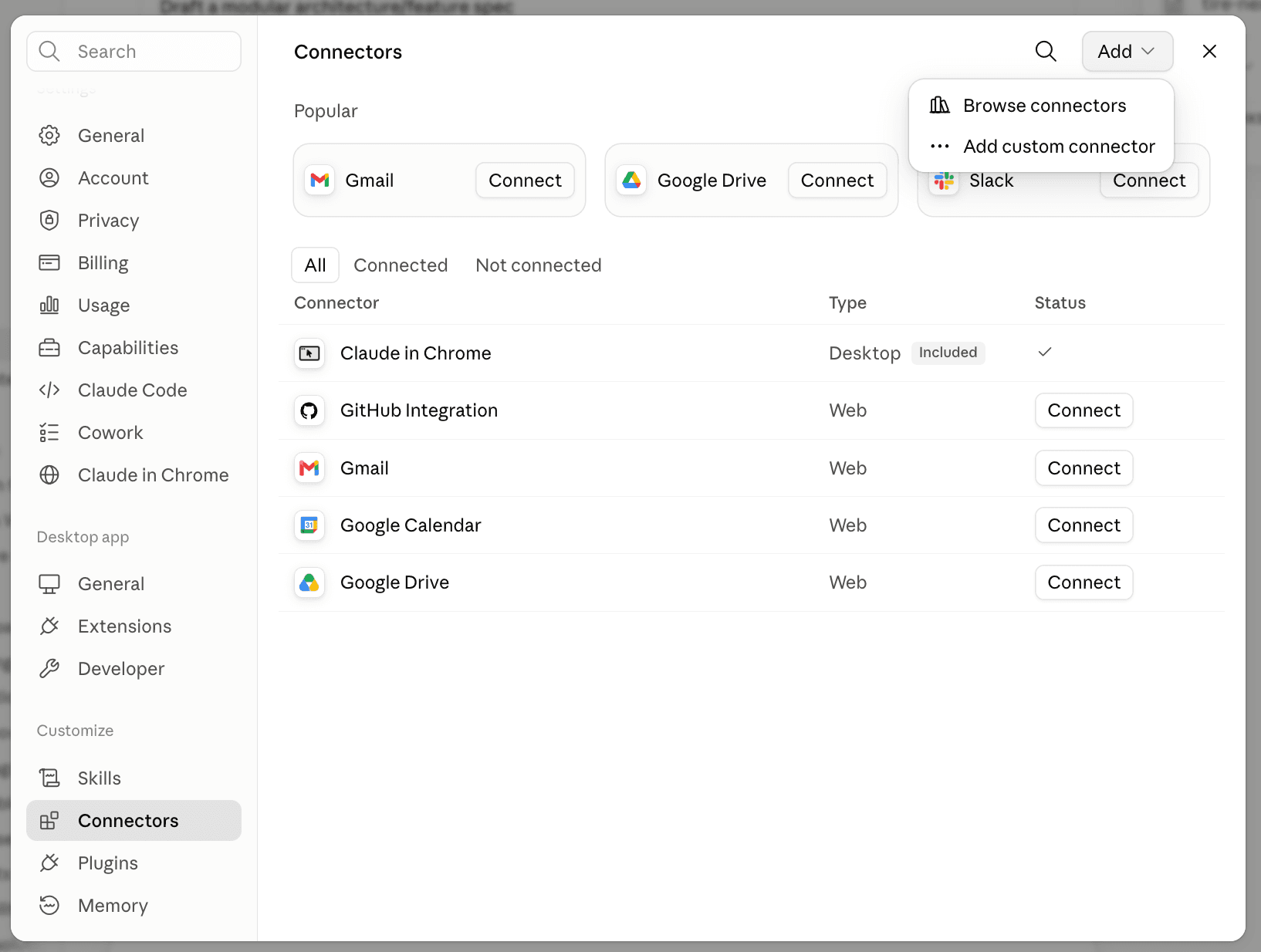
Give it a name you will recognise, like HostPepper, and paste the connector link below as the URL. That link is the only thing you need; there is no API key, token or password to generate.
https://staging-mcp.hostpepper.com/mcp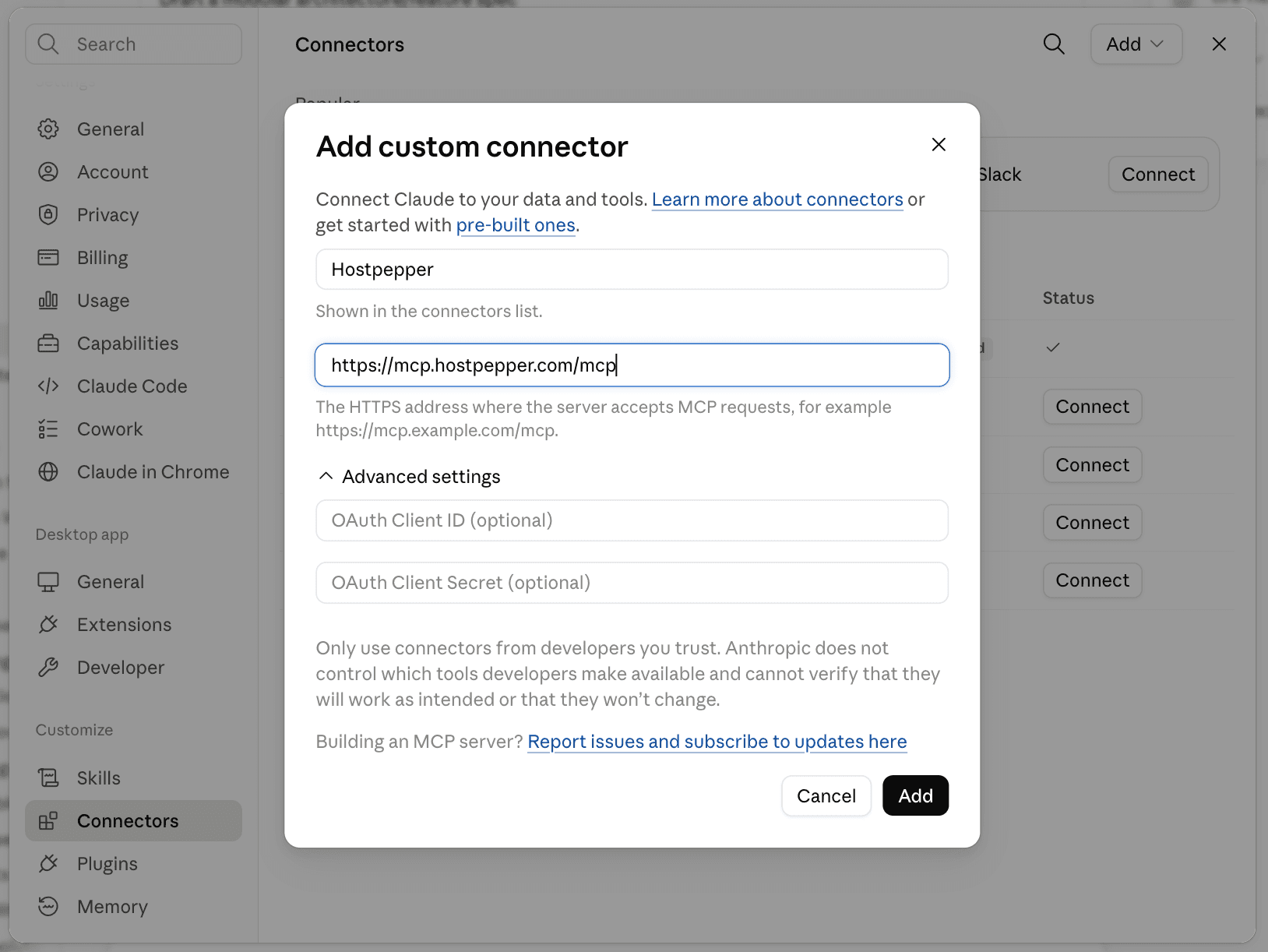
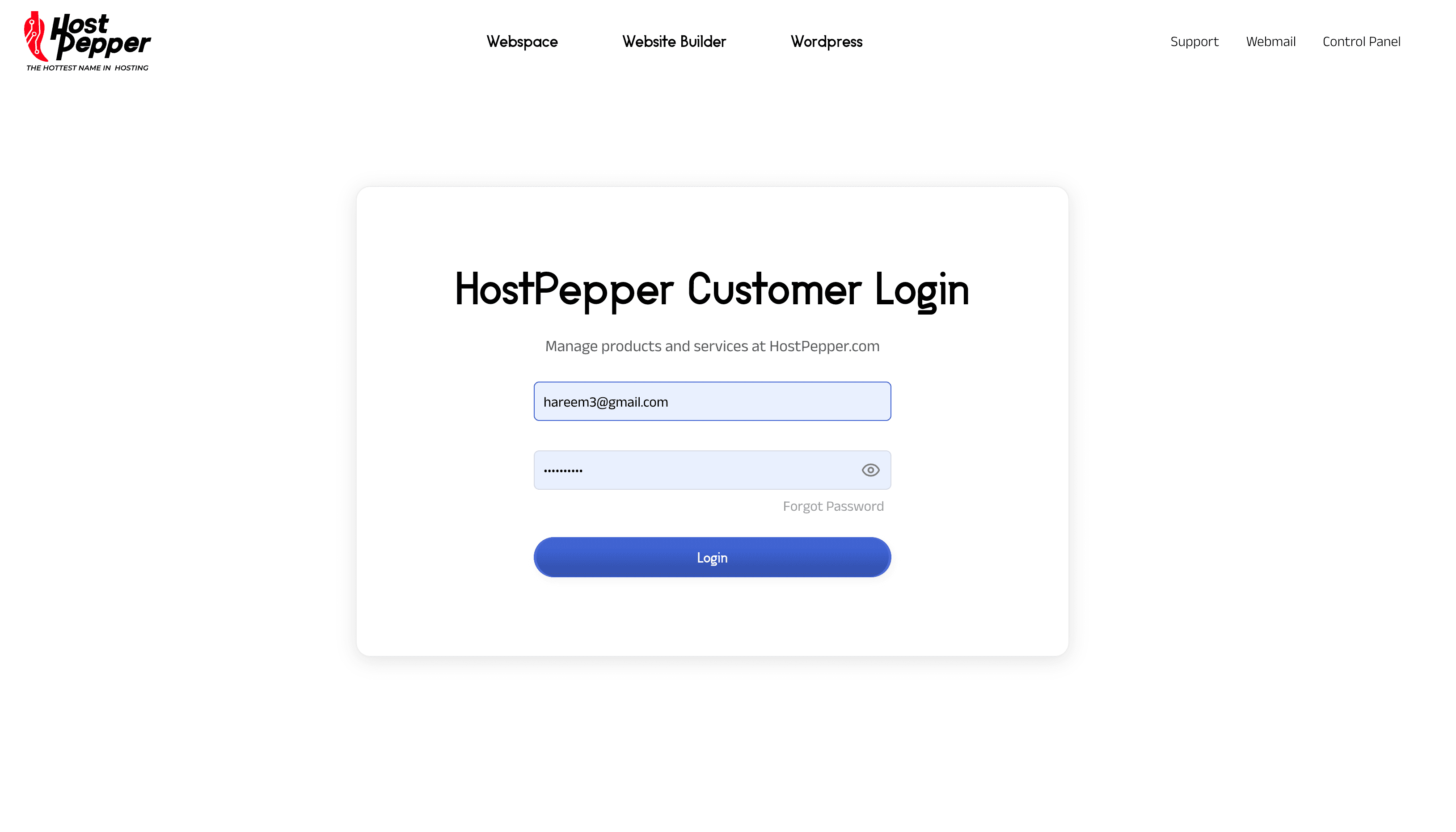
Your AI app hands you over to your browser and opens the HostPepper sign-in page. Log in with the account you already use for the control panel.
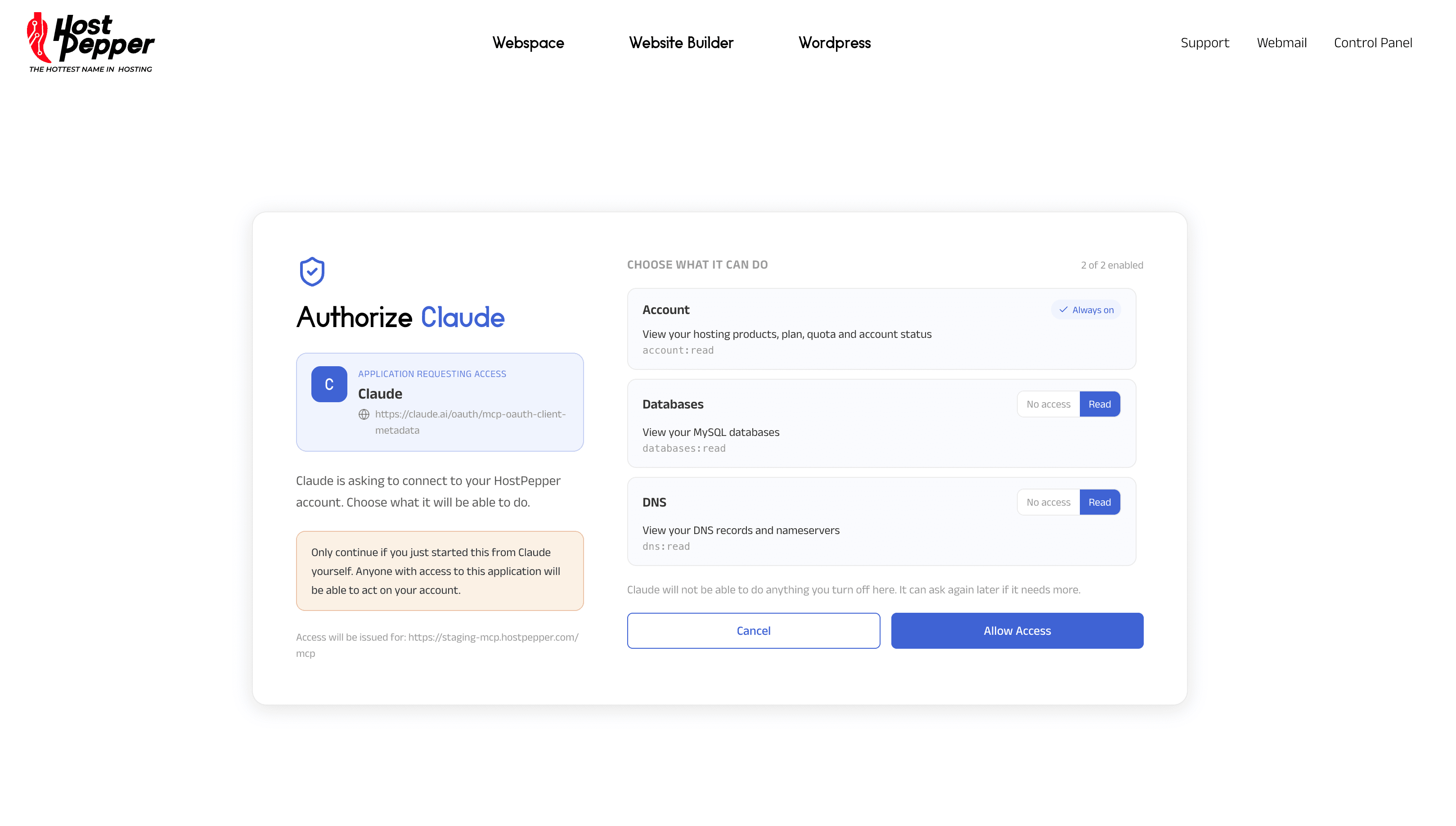
You will see exactly which parts of your account the connector is asking for, each one with its own choice: no access, read, or read & write. Give it write access only where you want it to make changes. Approve, and the browser hands you straight back to your AI app.
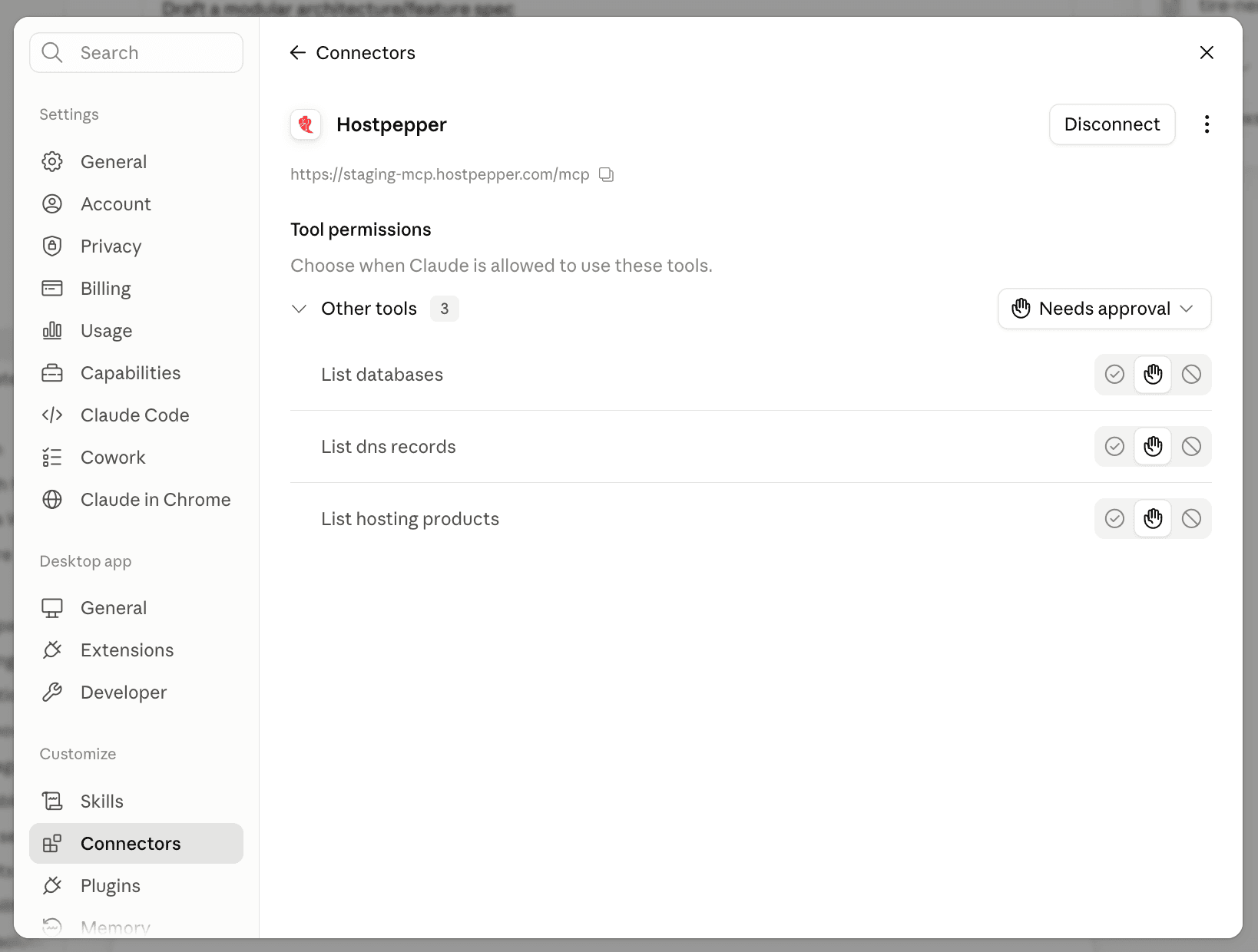
Back in your AI app the connector shows as connected, with every tool listed and a Disconnect button beside it. Try “list my hosting accounts” to see it work. You only do this once; it stays connected until you remove it.
You do not pick a version. Everyone uses the same link and signs in the same way, and HostPepper recognises what kind of account you have and offers only the tools that belong to it.
Resellers get their own set of tools on top of everyday hosting. Check how the business is doing, add a client, set up their hosting, suspend a package or grow your plan, all without leaving the chat.
What you can approveSuspending a package or buying more capacity always stops and asks you to confirm in the chat first.
Give me a quick snapshot of my reseller account.
The business looks healthy. One order is still being set up.
The link is identical everywhere. Only the menu changes. Whichever app you use, the browser sign-in and approval step above are the same.
Settings → Connectors → Add custom connector → paste the link → Add.
The screenshots above are from Claude.
Settings → Apps & Connectors → Advanced → developer mode, then Create → paste the link.
General-purpose connectors need developer mode, available on Pro, Team, Enterprise and Edu plans.
grok.com/connectors → New Connector → Custom → paste the link.
Custom connectors sit on Grok's paid tiers.
Add the server to your MCP config with the JSON below, then reload the app.
Cursor needs one extra line in that config. See the note below.
Look for “custom connector”, “remote MCP server” or “MCP” in the app's settings, then paste the same link.
If the app can add a remote MCP server, it can connect. The link and the browser sign-in never change.
Apps configured with a file rather than a settings screen take the same link in their MCP config. Add the block below, restart the app, and the same browser sign-in appears.
{
  "mcpServers": {
    "hostpepper": {
      "url": "https://staging-mcp.hostpepper.com/mcp"
    }
  }
}Our authorisation server uses Client ID Metadata Documents (CIMD), the registration method the MCP specification now prefers over Dynamic Client Registration. Claude, ChatGPT and most other clients already support it; Cursor does not yet. Until it does, add a static client ID to your Cursor config. Nothing else changes, and the browser sign-in works the same way.
{
  "mcpServers": {
    "hostpepper": {
      "url": "https://staging-mcp.hostpepper.com/mcp",
      "auth": {
        "CLIENT_ID": "a29a4a2f-d839-4722-a4c8-9a36d9f7f07b"
      }
    }
  }
}Handing an AI app access to your hosting should be a deliberate, reversible decision. The connector is built around that: modern OAuth sign-in, an explicit approval step, a scope you can see before you agree to it, and a confirmation for anything you cannot undo.

Deleting, restoring a backup, upgrading or cancelling stops and asks you to confirm in the chat first. If your AI app cannot show that confirmation, the action simply does not run.
There is no shared key. The connection uses your own HostPepper login, so it can only ever see what you can see in the control panel.
The browser step lists every category being requested (hosting, domains, mail, files, billing), each set to no access, read, or read & write. Keep a category read-only and it can look but never change; turn it off and nothing in it is reachable.
Remove the connector in your AI app and access stops immediately. Reconnecting is the same two-minute flow.
Still unsure about something? Our support team is happy to walk you through the setup.
What exactly is MCP?
MCP (the Model Context Protocol) is an open standard that lets AI assistants connect to outside systems. HostPepper runs an MCP server, so any AI app that speaks the standard can talk to your hosting account.
Which AI apps can I use?
Any AI app that supports custom remote MCP connectors. Claude, ChatGPT, Gemini, Grok, Claude Code and Cursor all do. A few have their own conditions: ChatGPT needs developer mode on a paid plan, and Grok puts custom connectors on its paid tiers. Apps configured with a file rather than a settings screen take the same link in their MCP config.
Do I need an API key or a developer account?
No. You paste one link, sign in to HostPepper in your browser and approve the access. There is no key to generate, store or rotate.
Can it change things, or only look?
Both, and you decide. On the approval screen each category can be off, read-only, or read & write. Everyday changes like adding a DNS record or creating a mailbox happen as soon as you ask; deleting something, restoring a backup, or anything that touches billing stops and asks you to confirm in the chat first.
I am a reseller. Can it help me run my business?
Yes. Sign in with your reseller account and the approval screen adds reseller categories: your business overview, your clients, hosting and orders, upgrades and tiers, and, on white-label tiers, your branding. Your assistant can look things up and make changes for you, like adding a client or setting up their hosting. Suspending a package or buying more capacity always asks you to confirm in the chat first.
What does the AI provider get to see?
Only the answers to the questions you ask. When your assistant looks something up, that result comes into your chat exactly as if you had pasted it there yourself, so treat it like any other conversation.
How do I disconnect it?
Remove the connector in your AI app. Access ends straight away, and you can reconnect any time with the same link.
One link, one browser sign-in, and your assistant can check and manage your own accounts, domains and sites. Already a HostPepper customer? You are two minutes away.



SAFE AND SECURE PAYMENT